
GitHub Copilot in Eclipse Configuration
This guide helps you configure GitHub Copilot in Eclipse specifically for ABAP development.
Table of contents
Using and Configuring Copilot
Premium Requests
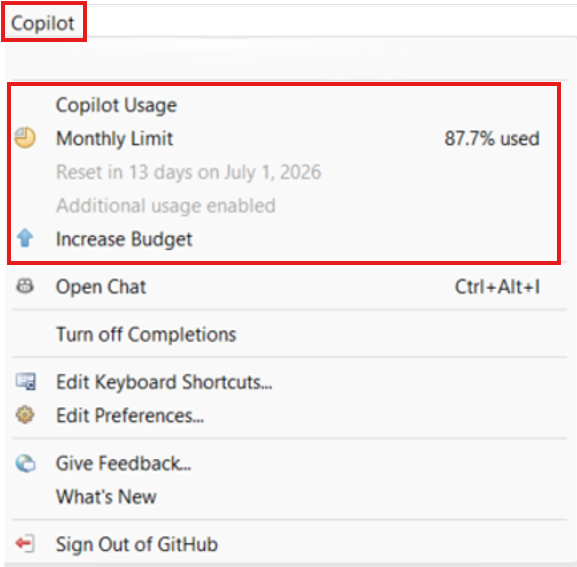
At the top of the Copilot dropdown, you can view your current Premium Requests usage.
WARNING
Premium Requests are tied to your GitHub account, not the tool. If you use GitHub Copilot across multiple IDEs (VS Code, IntelliJ, Eclipse), all usage counts against the same quota.
| License | Premium Requests |
|---|---|
| Business | 300/month |
| Enterprise | 1000/month |
Further information: Premium Requests Documentation
Code Completions
Enable this feature in Copilot > Edit Preferences > Completions. 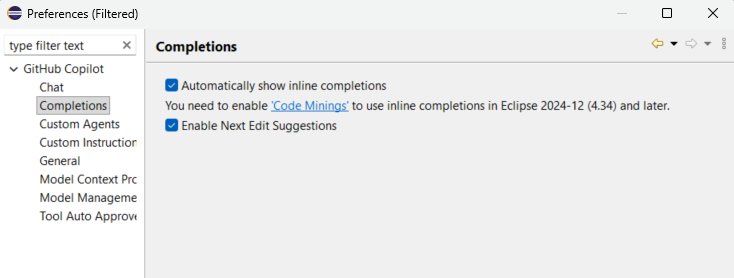
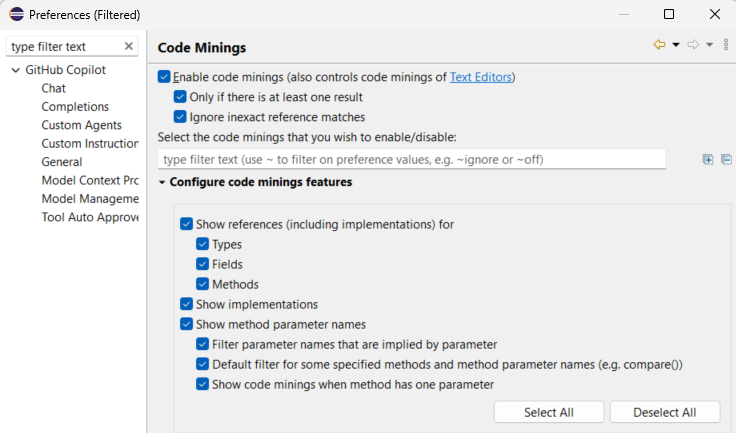
After that, code completions work automatically as you type in any supported editor. Copilot suggests completions inline — accept with Tab, dismiss with Esc.
- Completions trigger on both code and natural language comments
- Works in ABAP, Java, and other languages supported by Eclipse editors
- No additional configuration needed — completions are active after sign-in
Official Documentation on Code Completions
Copilot Chat
Access the chat via Copilot → Open Chat.
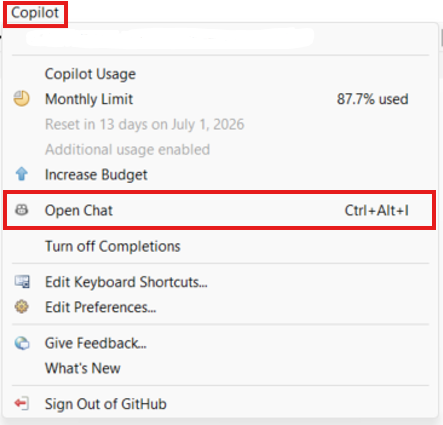
You can select a language model and the mode you want to use with Copilot:
| Mode | Description | Best For |
|---|---|---|
| Ask | General questions and code explanations | Quick answers, code review, explanations |
| Agent | Autonomous coding with file editing and terminal commands | Refactoring, creating files, multi-step tasks |
| Plan | Creates a step-by-step implementation plan before acting | Complex changes requiring review before execution |
| Debugger | Analyzes errors and suggests fixes | Runtime errors, stack traces, test failures |
For ABAP development, Agent mode may encounter issues with the semanticfs URI scheme. If you see this error, fall back to Ask mode for ABAP-specific tasks. This means Eclipse cannot create new artefacts; it can only update existing ones. If you need to create new artefacts, you must create them manually or connect through an MCP server that supports this capability. See Model Context Protocol (MCP) below.
TIP
Use Plan → Review → Act for any task beyond a small one-file change. Draft the approach in Ask or Plan mode, review and adjust it, then execute in Agent mode. This helps catch wrong assumptions before changes are applied and avoids unnecessary side effects.
Models
You can select which language model Copilot uses for chat and completions from the model selector in the Chat panel.
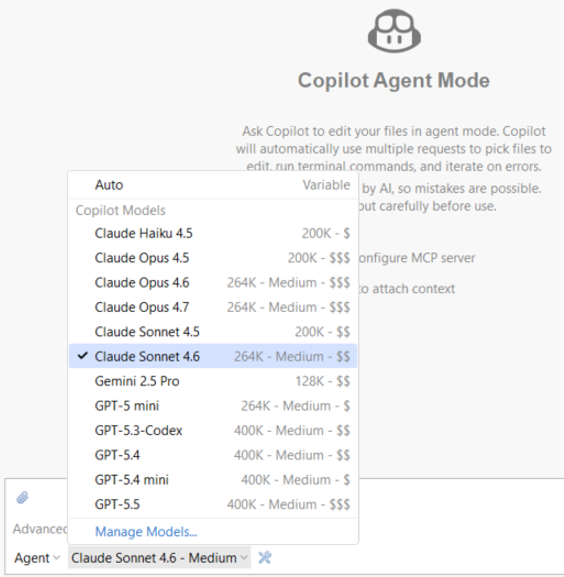
Available models and their characteristics are documented in the GitHub Copilot Models Documentation.
TIP
Choosing the right model for your task can significantly reduce costs. See Basic Token Saving Strategies for guidance on matching models to tasks.
Custom Instructions
Custom instructions let you provide Copilot with project- or workspace-specific context — coding conventions, architecture patterns, or ABAP-specific guidance — so Copilot tailors its responses without you repeating them in every prompt.
Eclipse supports two types:
| Type | How to set up | Scope | Eclipse-specific? |
|---|---|---|---|
| Workspace instructions | Copilot icon (status bar) → Edit Preferences → GitHub Copilot → Custom Instructions → Enable workspace instructions | All projects in this Eclipse workspace | Yes — must be manually enabled via the UI |
| Project instructions | Create .github/copilot-instructions.md in your project root | Single ADT/Eclipse project | No — works across all Copilot-supported IDEs and GitHub.com |
- Workspace instructions require explicitly enabling the toggle in preferences — they are not active by default.
- Project instructions are picked up automatically once the file is saved in most IDEs — but in Eclipse with ADT, the file is not picked up automatically and must be manually attached in the chat panel (see note below).
TIP
ADT limitation: SAP ABAP projects connect to a remote SAP system via RFC/HTTP, so they do not have a local file system root.
You cannot create a .github/copilot-instructions.md file directly inside an ADT project node in the Project Explorer.
Recommended workaround for ABAP developers:
Use Workspace instructions (preferred): Set your ABAP conventions once in the preferences UI. They then apply to all your ADT connections in that workspace.
Create a local companion project: Create a new General Project in your Eclipse workspace (File > New > Project > General > Project), place
.github/copilot-instructions.mdinside it, and keep it open alongside your ADT project.
Note: In Eclipse, this file is not picked up automatically. You must manually add it as context by attaching it in the Copilot Chat panel before starting your session.
Example: .github/copilot-instructions.md for an ABAP project
# Code Conventions
## ABAP classes and reports
- use upper case for key words - use snake case for identifiers
- keep camel case for CDS views and field names of CDS views in ABAP code
- avoid prefixes and encodings; exception: the existing code uses prefixes
and encodings
- use meaningful names for variables and avoid abbreviations unless name
exceeds limit of 30 characters
- use plural for variable names of tables and type definitions
- hold declared variables as local as possible, i.e., no unnecessary statics,
or globals - use inline declaration if possible
- don't use inline declarations in optional scopes (e.g., in if conditions) if
the variable is used outside of this scope
- use ABAP doc to document methods, but don't use translation tags
- write only English comments - do not comment each line of code; comment
complex logic, algorithms, and business rules as single block comment
## CDS views
- use lower case for key words - keep camel case for field names and associations
- For associations, use the new cardinality form `Cardinality Syntax Written in
Words`
Syntax: `ASSOCIATION OF { EXACT ONE | MANY | ONE } TO { EXACT ONE | MANY | ONE } target`
- On the left side, describe how many entries can exist for the key on
the right side
- On the right side, describe how many entries can exist for the key on
the left side
- write only English comments - do not comment each line of code; comment
complex logic, algorithms, and business rules as single block comment
# Explain
When providing explanations, analyze only real code—do not rely on code commentsOfficial Documentation: Custom Instructions in Eclipse
Custom Agents
In SAP S/4HANA ABAP projects, Eclipse exposes the repository through a virtual filesystem (semanticfs:) rather than a real local folder. GitHub Copilot Custom Agents currently expect a standard filesystem workspace where they can create files such as .github/agents/*.agent.md.
As a result, Copilot rejects the SAP ADT project with the error "Invalid workspace folder URI: semanticfs:/..." because it cannot write agent files into a SemanticFS-based ABAP project. This is a limitation of the current Copilot Eclipse integration.
Recommended workaround for ABAP developers:
Create a local companion project: Create a new General Project in your Eclipse workspace (File > New > Project > General > Project), and place
.github/agents/*.agent.mdfiles there alongside your ADT projects.Connect to an MCP server: Ensure you are connected to an MCP server. See Model Context Protocol (MCP) below.
Use an MCP server with SAP access: The MCP server must be able to access your SAP system.
Enable this feature in Copilot > Edit Preferences > Custom Agents.
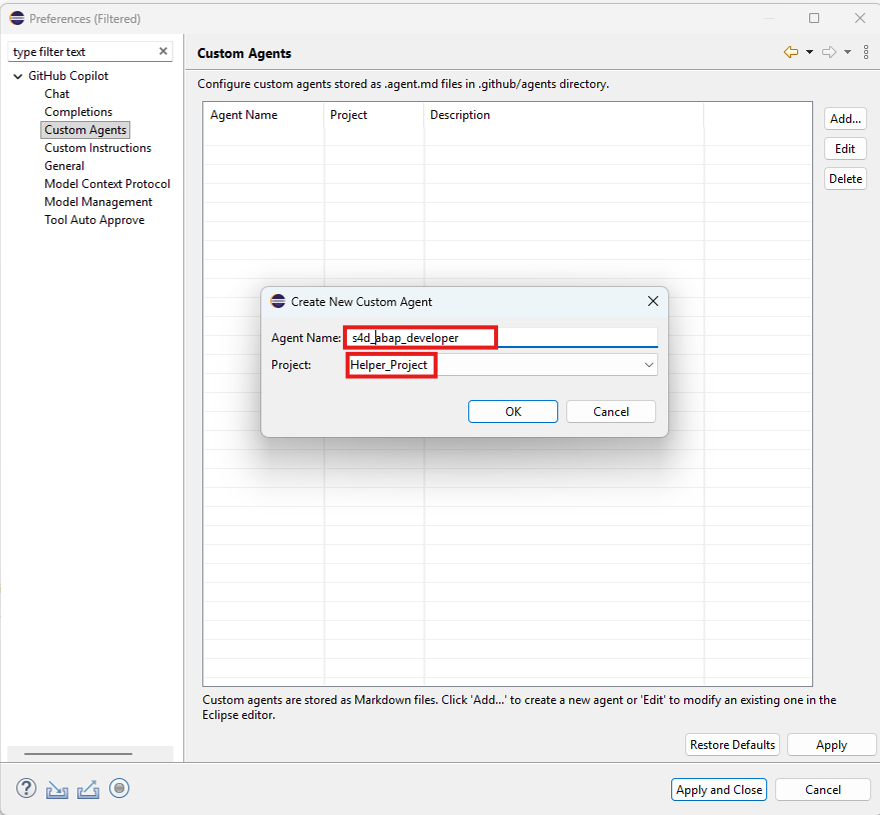
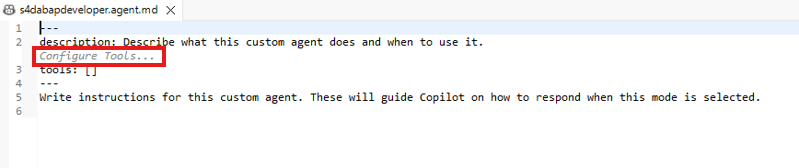
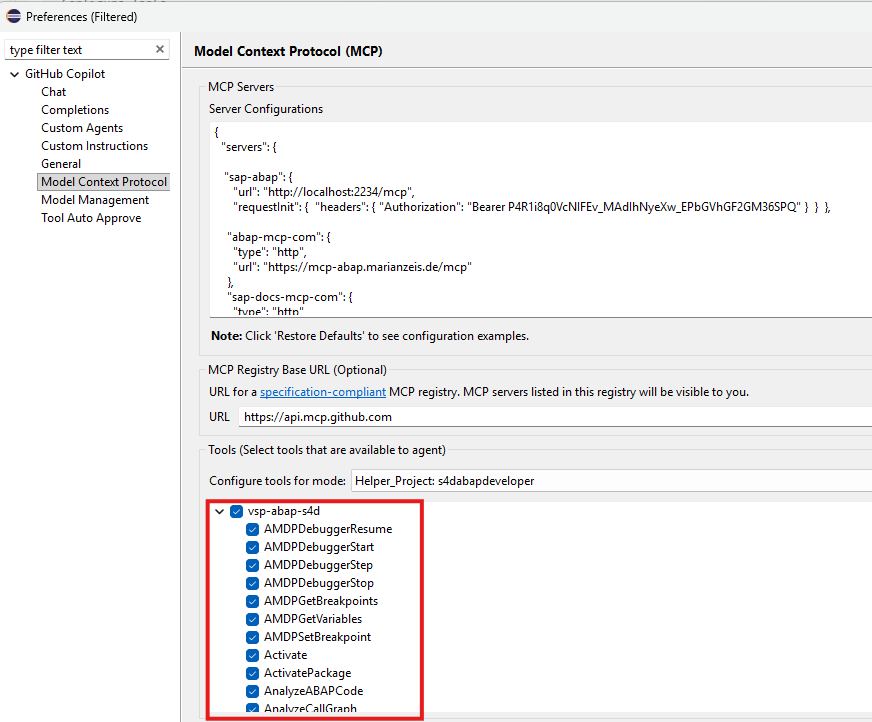
Here, you select the MCP server you want to use and only the functionality you need. For example, if you create an agent for analysis, you do not need to grant it access to write functions.
The MCP server you connect to is very important for ABAP development. SAP has released an official MCP server, which can connect to all open SAP projects in your Eclipse workspace. Multiple MCP server options are available depending on your system setup and requirements.
Model Context Protocol (MCP)
See the SAP MCP Servers List.
For guidance on adding, configuring, and using MCP servers with your ABAP projects, see SAP MCP Server Configuration.